Podcast Clips: One YouTube Episode, a Week of Shorts
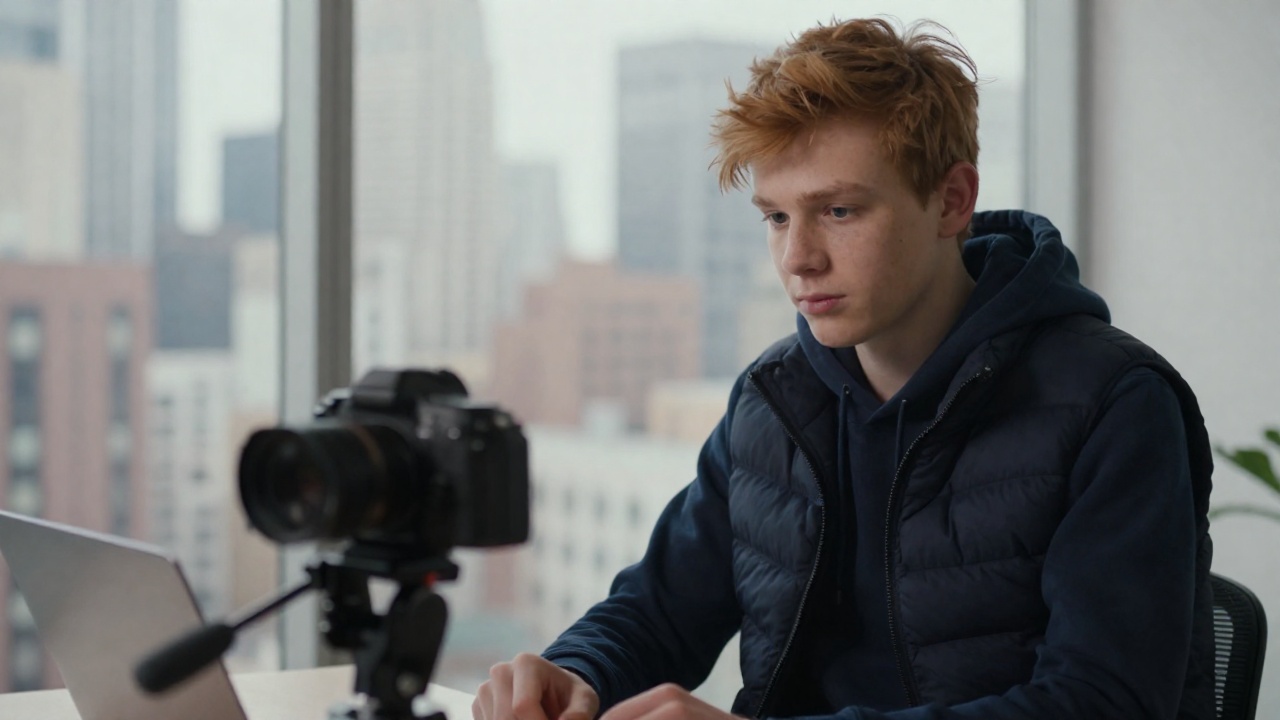
Podcast clips are short vertical excerpts of an episode, captioned and posted on TikTok, Reels and Shorts to send people to the full show. If your episode is filmed and published on YouTube as a public video, one episode can give you a week of them: paste the link, read the scored moments, pick seven, check the captions and the frame, then post one a day yourself.
There is one case where this does not work, and YouTube's own documentation explains why. Its help page "Deliver podcasts using an RSS feed", on YouTube Help and read on 12 October 2026, says that for a show delivered by RSS, "YouTube will use your podcast's show art to create a static-image video". A clip framed on the person talking needs a person in the picture. This article starts from that line, then gives the method for the filmed episode. There are no audience statistics here, only what YouTube's help pages and our own site state.
TL;DR
- Check what the episode shows before anything else. An episode delivered by RSS becomes a static-image video made from your show art: there is nobody to frame.
- A filmed episode, uploaded as a public YouTube video, is the input that works. Its link is all you paste.
- One episode, five steps: paste the link, read the scored moments, pick seven, check one clip, post one a day.
- Keep the clips out of your podcast playlist. YouTube says a podcast should only contain full-length episodes, and that Shorts made to support it do not appear in YouTube Music.
- viralmaker does not post for you, and we have not validated its framing on a table of three or four speakers: generate one clip and check it before the other six.
Table of contents
- Filmed episode or RSS feed: what decides if you get podcast clips
- 1. Publish the episode as a public YouTube video, then paste its link
- 2. Read the scored moments before you spend anything
- 3. Pick seven moments, one for each day
- 4. Generate one clip first and check captions and frame
- 5. Post them yourself, outside your podcast playlist
- Where this method stops
- Frequently asked questions
- One episode, one week
Filmed episode or RSS feed: what decides if you get podcast clips
On YouTube, every podcast episode is a video. The help page "Create a podcast in YouTube Studio" puts it in so many words: "On YouTube, a podcast show is a playlist, and podcast episodes are videos in that playlist." It adds that "MP3s can't be turned into podcasts on YouTube." What changes from one show to the next is what that video shows.
An episode gets there in one of two ways:
- You upload it as a video. If you filmed the conversation, the picture shows the people talking.
- You connect an RSS feed. "Deliver podcasts using an RSS feed" is written for "an audio-first podcast creator that distributes your podcast using an RSS feed". In that case, "YouTube will create videos for each podcast episode that you choose to upload. YouTube will use your podcast's show art to create a static-image video and upload it to your channel on your behalf." New episodes added to the feed then upload on their own. RSS delivery is only offered in some countries; YouTube's list of locations includes the United States and the UK.
Here is what that means for clips, side by side:
| Filmed episode, uploaded as a video | Audio episode, delivered by RSS | |
|---|---|---|
| What the picture shows | The people talking | Your show art, as a static image |
| Who puts it on YouTube | You | YouTube, "on your behalf" |
| What a vertical crop can follow | Whoever is speaking | Nothing: the picture never changes |
| Fit for clips framed on the speaker | Yes, once the video is public | No |
The last line is the one that matters. A tool that cuts a widescreen frame down to 9:16 and follows the speaker needs a speaker in the frame. On a static-image episode, every crop is a slice of your cover art.
To tell which one you have, play the episode on YouTube and skip through it. If the picture never moves away from the show art, there is nothing to frame. In YouTube Studio, the podcast's details page has a section called "RSS settings": that is where a feed gets connected.
If your show is audio-only today, the clips start with the next episode you film. One camera on the host already gives a crop something to follow. You upload that episode as a video and add it to your podcast in Studio, as "Create a podcast in YouTube Studio" describes.
1. Publish the episode as a public YouTube video, then paste its link
viralmaker takes one input: a public YouTube link. Not the audio file, not the link from your podcast host, not the RSS feed. That is the main limit of this method, and the reason the first step happens on YouTube.
Visibility matters too. The RSS help page lists three visibility options for podcast episodes, Private, Unlisted and Public, and notes that episodes from a newly connected feed are first uploaded as private videos. If you keep a filmed episode private while you prepare its release, your clips wait for the release: the link has to be public.
The link does not have to be yours. viralmaker takes any public YouTube video, yours or someone else's. If you clip other people's podcasts for a living, the rules that decide whether you get paid are in how to start clipping.
2. Read the scored moments before you spend anything
Once the link is pasted, viralmaker surfaces the moments it finds in the episode and gives each one a virality score. Its site lists what the score weighs: "hook, pace, emotion, length". The analysis and the scores are free. Generating a clip is what uses credits.
Read the list with one question per moment: does it make sense to someone who has not heard the rest of the episode? A podcast moment that works as a clip usually opens on a question, a claim or a story, and ends on a full sentence. A moment that leans on a setup from earlier in the conversation is good for the episode and weak as a clip. How to judge a moment cut by cut is covered in our method to turn a YouTube video into shorts.
Seeing the moments before paying is also the fairest way to compare tools. The five things worth checking on a clip before you pay for any of them are in AI clip maker: what to check before you pay.
3. Pick seven moments, one for each day
A week of shorts is seven clips, posted one a day. Take them from different parts of the episode rather than seven moments from the same stretch of talk: each day then gives a new reason to press play, and all seven point back to the same full episode. Post the highest score first. That is what the score is for: "so you know which one to post first", as the site puts it.
On length, YouTube's help page "Get started creating YouTube Shorts" describes "short-form videos that are up to 3 minutes long". A podcast answer often needs more room than a quick reaction, so a clip that runs past a minute is fine, as long as it stops where the speaker stops. What changes once a Short passes the minute is explained in how long are YouTube Shorts.
The budget for a weekly show is easy to work out. 10 credits = 1 generated clip, so a week of seven clips is 70 credits. On the pricing page read on 12 October 2026, Starter costs EUR 19 a month for 300 credits, which is 30 clips: about one a day for a show that publishes every week. Creator (EUR 34, 600 credits) and Studio (EUR 79, 1500 credits) are there if you clip more than one show.
4. Generate one clip first and check captions and frame
Generate the clip with the highest score before the other six, and watch it on your phone. Ten credits tell you whether the next sixty are worth spending.
- Captions. viralmaker burns them into the picture, "readable with the sound off". Check that they keep up with the speakers, and that names and show-specific words come out right.
- Sound. Keep it. On a podcast, the voice is the content: captions serve people who scroll with the sound off, they do not replace the audio.
- Frame. The site describes a "vertical 9:16 cut, framed on whoever is speaking". With a host and a guest each on camera, watch whether the frame goes to whoever talks. A round table with three or four people in one wide shot is a case we have not validated: if your show looks like that, test one clip from it before you count on the other six.
5. Post them yourself, outside your podcast playlist
viralmaker does not post for you. You download the clips and post them yourself on TikTok, Reels and Shorts. Auto-posting is announced as coming soon, which means it is not available today. Download all seven as soon as they are ready: the FAQ on the French version of the site says the source video and the clips are deleted from its servers after 48 hours. Then post one a day.
On YouTube, keep the Shorts out of the podcast itself. "Create a podcast in YouTube Studio" says that "your podcast should only contain full-length episodes", and that "Shorts created to support your podcast will not appear in YouTube Music." Post them on your channel as Shorts, and let them send people to the full episode.
One more line from "Deliver podcasts using an RSS feed" matters for the moments you pick. If an episode includes branded content "(like host-read promotions), sponsorships, or endorsements", YouTube says "you're required to let us know". A clip cut from inside a sponsor read carries that promotion with it. The simplest choice is to leave those minutes out of your clips.
Where this method stops
- Input: a public YouTube video and nothing else. No audio file, no link from a podcast host, no RSS feed, no Twitch, Zoom or Vimeo link.
- Audio-only episodes: if YouTube built the video from your show art, there is nobody to frame. Film the next one.
- Round tables: framing three or four speakers in one wide shot is not validated. Test one clip.
- Posting: you post. Auto-posting is not available today.
- Free part: the analysis and the scores. A clip costs credits.
If you are weighing this against a tool that takes files or other sources, the lines worth comparing on a pricing page are in Opus Clip alternative: 5 things to compare.
Clips are also not the only thing an episode can become. If you want the same conversation as a written article, video2blog, our other product, has a step-by-step guide to turning a podcast episode into an article.
Frequently asked questions
Can I make podcast clips from an audio-only episode?
Not with this method. If YouTube created the episode from your RSS feed, the video is your show art as a static image, so there is nobody for a crop to follow. viralmaker does not take audio files either. The clips start with the next episode you film and upload as a video.
How many clips can one episode give?
It depends on the episode, and we do not publish a figure. Seven clips, one a day, is a plan for a weekly show, not a promise: the scores show you how many moments stand on their own.
Will the clips show up with my podcast in YouTube Music?
No. YouTube's help page says that Shorts created to support your podcast will not appear in YouTube Music, and that a podcast should only contain full-length episodes.
Does viralmaker post the clips for me?
Not today. You download your clips and post them yourself. Auto-posting is announced as coming soon.
One episode, one week
Film the episode, publish it as a public YouTube video, paste the link. Read the moments and their scores for free, generate the best one first and check its captions and frame, then generate the other six. Download them, post one a day outside your podcast playlist, and start again with next week's episode.